Guides · Tutorial
Replace MessageBox() in PowerBuilder: themed dialogs and toast notifications
MessageBox() has served PowerBuilder applications for thirty years, and it shows: a grey Windows 95 box, one block of text, buttons you cannot rename, no input field, no way to say "don't ask me again". And every "Saved." it displays stops the user until they click OK.
This tutorial replaces both habits with two free PBToolboxAI components:
n_pbt_messagebox, a themed modal dialog that keeps the synchronous return value ofMessageBox()— and adds a main instruction, rich text, your own buttons, a check box, an input field with validation, choices and folded details;n_pbt_toaster, toast notifications in the corner of the window: they inform, then go away, without interrupting the user.
Both are free, for good: no licence key, no demo badge, no limit. They work from PowerBuilder 10.2 to 2025, with no ActiveX and no .NET.
We will build a small customer list, shown in a PBToolboxAI datagrid. Every command answers with a dialog or a toast: add, rename, delete with an undo, export with a progress notification, an import that fails with a useful error, and the classic "Save the changes before closing?". The code below comes from the sample application: the window w_tuto_dialogs of the PBToolboxAI demo, opened by its Tutorials tab.
What you need #
- PowerBuilder 10.2 → 2025 (32 or 64 bit).
- Windows 10 or 11: the Microsoft WebView2 runtime the components rely on is already there.
- The PBToolboxAI demonstration package — free, from the downloads page. It holds
pbtoolboxai.pbl,pbtoolboxai.dlland the sample application of this tutorial.
The finished code. Open
pbtoolboxai_demo.pbwfrom the demonstration package and run it: the Tutorials tab of its ribbon opens the sample of this tutorial, the windoww_tuto_dialogs. Its source is inpbtoolboxai_demo.pbl, ready to read or to copy.
Step 1 — Prepare the target #
- Copy
pbtoolboxai.pblinto your application folder and add it to the library list of your target. - Copy
pbtoolboxai.dll— the x86 copy, since the PowerBuilder IDE is 32-bit — next topbXXX.exeor into the working folder of the target, so that the IDE finds it when you run.
That is the whole installation. The DLL carries everything else — the HTML, the themes, the translations of the buttons — as embedded resources.
Step 2 — The application object #
Declare two functions of the DLL, then choose the theme before the first window opens:
// Local External Functions of the application object
Function long PBT_SetDefaultTheme (string as_name) Library "pbtoolboxai.dll"
Function long PBT_Warmup () Library "pbtoolboxai.dll"
// open event of the application object
// Starts the WebView2 engine in the background : the first dialog opens at once
PBT_Warmup()
// The theme of every dialog and every toast
PBT_SetDefaultTheme(/*name*/ "fluent-dark")
Open(w_customers)No PBT_SetLicense for the dialogs: the message box and the toaster are free components. The customer grid of the sample is a u_pbt_datagrid, which is not: without a key it runs in demo mode, with a small DEMO badge and 100 rows at most — plenty for this tutorial. A ListBox or a DataWindow would do the same job; nothing in the dialogs depends on the grid. Ten themes ship with the DLL — fluent-light, fluent-dark, office2007-light… — and every dialog follows the one you set.
Step 3 — One message box for the window #
n_pbt_messagebox is a non-visual object. The window creates one instance and uses it for every dialog:
// Instance variables of the window

// The message box : one instance for the whole window, created in open
n_pbt_messagebox inv_mb

// Helpers (autoinstantiate : nothing to create) : a customer name is DATA, its
// brackets must not be read as rich text markup
n_pbt_utils inv_utils
// open event of the window
// The message box is created once : the same instance shows every dialog
inv_mb = create n_pbt_messagebox// close event of the window
// The message box was created in open
destroy inv_mbEvery dialog takes the handle of the owner window as its first argument, Handle(this): the box is modal to that window and centred on it.
The customers: a DataStore and a grid #
The customers live in a DataStore, and a u_pbt_datagrid named uo_customers shows them. The DataStore stays the master: every command changes it, then tells the grid. The grid reads the column titles in the DataWindow (d_tuto_customers: a name and a city), and names each row by its RowID, which does not move when rows are inserted or deleted:
// Instance variables of the window (continued)

// The customers : the DataStore holds them, the grid shows them
datastore ids_customers

// The row of the customer selected in the grid (0 = none)
long il_row = 0
// open event of the window (extract)
// The customers live in a DataStore ; the grid selects one row at a time
ids_customers = create datastore
ids_customers.DataObject = "d_tuto_customers"
uo_customers.is_selection_mode = uo_customers.SELECT_SINGLE// wf_show ()
// The grid reads the DataStore again : its titles, its rows. The columns keep what
// was set on them (width, sort), only the rows are new.
uo_customers.of_from_datastore(/*ads*/ ids_customers)The window keeps the row the user selected; the grid gives it as a JSON array of RowIDs:
// ue_selection_changed event of uo_customers : (string as_keys_json)
// Local variables
long ll_quote, ll_end

// '["3"]' : the RowID of the row selected, '[]' when there is none
ll_quote = Pos(as_keys_json, '"')
if ll_quote = 0 then
	parent.il_row = 0
else
	ll_end = Pos(as_keys_json, '"', ll_quote + 1)
	parent.il_row = parent.ids_customers.GetRowFromRowId(Long(Mid(as_keys_json, ll_quote + 1, ll_end - ll_quote - 1)))
end if
A double-click on a row renames the customer, as in the Explorer (ue_row_dblclicked). The grid also brings its own search box, column chooser and filters, for free in your code.
Step 4 — The drop-in replacement #
The quickest migration is one prefix. of_messagebox takes the arguments of MessageBox(), in the same order and with the same enumerations, and returns the same button number:
// closequery event of the window

// Local variables
long ll_answer

if not ib_dirty then return 0

// PowerBuilder's MessageBox(), argument for argument, behind one prefix
ll_answer = inv_mb.of_messagebox(Handle(this), "Customers", "Save the changes before closing?", Question!, YesNoCancel!, 1)
choose case ll_answer
	case 1
		wf_save()
	case 3
		// Cancel : the window stays open
		return 1
end choose
return 0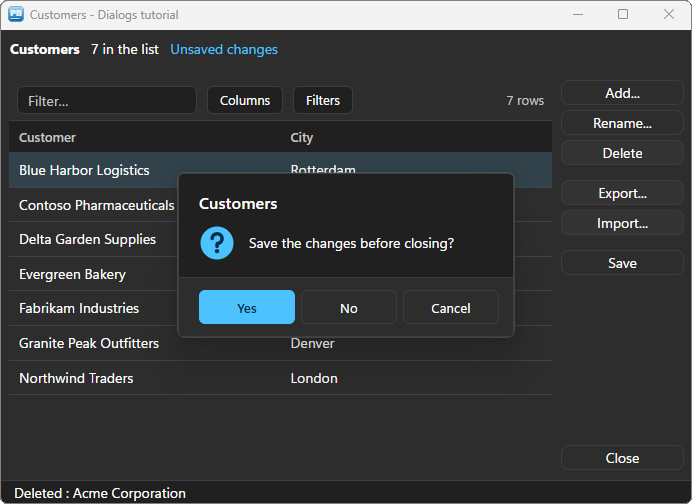
A search and replace of MessageBox( with inv_mb.of_messagebox(Handle(this), modernises a whole screen. The buttons are translated by the library itself (six languages), which spares you Yes/No strings in every application.
For the one-line cases there are shortcuts — of_info, of_warning, of_error, of_success, of_confirm, of_yes_no, of_retry_cancel:
// The drop-in for MessageBox("Rename", "...") : one line, an OK button
inv_mb.of_info(/*hwnd*/ Handle(this), /*title*/ "Rename", /*message*/ "Select a customer first.")
Step 5 — Ask a real question #
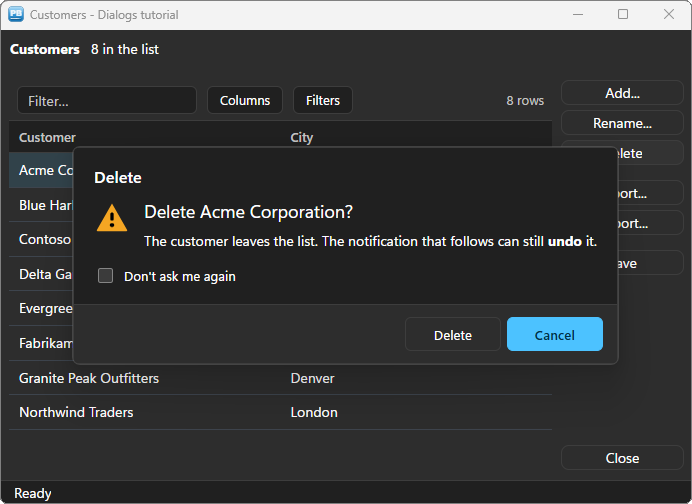
A good confirmation has a main instruction — the question, in big — then a sentence that says what it means. Buttons say what they do (Delete, not Yes), and a destructive action puts the safe button under Enter.
// Ask first, unless the user said not to
if not ib_skip_delete_confirm then
	inv_mb.of_reset()
	inv_mb.is_title = "Delete"
	inv_mb.is_icon = inv_mb.ICON_WARNING

	// The question, big ; then what it means, smaller
	inv_mb.is_instruction = "Delete " + inv_utils.of_escape_markup(ls_name) + "?"
	inv_mb.is_message = "The customer leaves the list. The notification that follows can still [b]undo[/b] it."

	// A destructive action : Cancel is the default button, under Enter
	inv_mb.is_checkbox = "Don't ask me again"
	inv_mb.of_add_button(/*text*/ "Delete", /*default*/ false, /*cancel*/ false)
	inv_mb.of_add_button(/*text*/ "Cancel", /*default*/ true, /*cancel*/ true)
	if inv_mb.of_show(/*hwnd*/ Handle(this)) <> 1 then return

	// The state of the check box, read after the box closed
	ib_skip_delete_confirm = inv_mb.ib_last_checked
end if
Three things to note:
of_reset()first. The same instance shows every dialog: reset clears what the previous one set — buttons, check box, input field.of_showreturns the rank of the button clicked, starting at 1, in the order they were added. Esc answers with the cancel button.- The message is rich text:
[b],[i],[accent],[br]… A customer name is data:of_escape_markupkeeps a bracket in it from being read as markup.
Step 6 — Ask for a value #
Adding a customer needs a name. of_prompt asks for it in one line and returns what was typed — or an empty string when the user cancelled:
// One line asks for a value : "" means the user cancelled.
// The last two arguments : not a password, and an empty answer is refused.
ls_name = inv_mb.of_prompt(/*hwnd*/ Handle(this), /*title*/ "New customer", /*message*/ "Name of the new customer:", /*default*/ "", /*password*/ false, /*required*/ true)
if ls_name = "" then return
Renaming goes further: the field is pre-filled and selected, so typing replaces it, and a pattern refuses a value while it is typed — the list is exported as CSV, so a semicolon is not allowed:
// A full dialog : start from a clean box, then describe it
inv_mb.of_reset()
inv_mb.is_title = "Rename"
inv_mb.is_icon = inv_mb.ICON_NONE
inv_mb.is_instruction = "Rename this customer"
inv_mb.is_message = "The new name shows everywhere the customer appears."

// The input field : filled with the current name, selected, so typing replaces it
inv_mb.ib_input = true
inv_mb.is_input_label = "New name"
inv_mb.is_input_value = ls_old
inv_mb.ib_input_required = true
inv_mb.il_input_max_length = 40

// The list is exported as CSV : a semicolon is refused while it is typed
inv_mb.is_input_pattern = "[^;]+"
inv_mb.is_input_error = "A name cannot hold a semicolon."

// Rename is the default button (Enter), Cancel the cancel one (Esc)
inv_mb.of_add_button(/*text*/ "Rename", /*default*/ true, /*cancel*/ false)
inv_mb.of_add_button(/*text*/ "Cancel", /*default*/ false, /*cancel*/ true)
if inv_mb.of_show(/*hwnd*/ Handle(this)) <> 1 then return

// The value typed is read once the box is closed : into the DataStore, then
// the grid shows that one row again
ids_customers.SetItem(il_row, "name", inv_mb.is_last_input_value)
uo_customers.of_reload_row(/*row*/ il_row)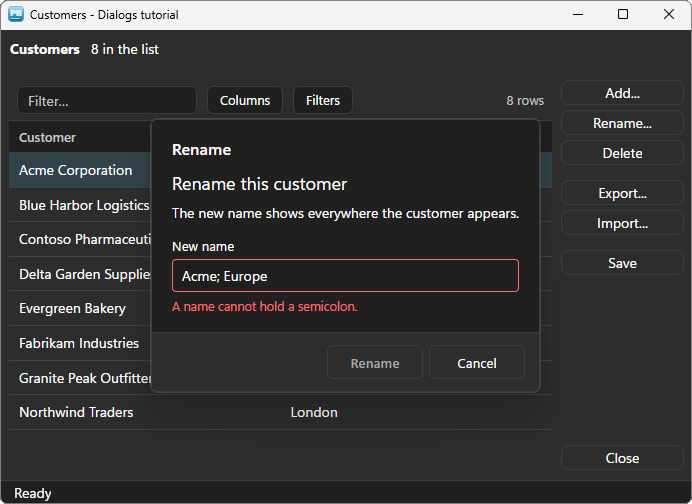
While the value does not match, the default button stays out of reach: the window never has to validate it after the fact. Other settings of the field: ib_input_password (masked, with an eye to reveal it), ib_input_multiline, is_input_placeholder.
Step 7 — Offer choices instead of buttons #
When the answer is where or how, a sentence per option beats a row of buttons. of_add_choice adds a title and a description, like the command links of a Windows task dialog; of_choose returns the key of the choice clicked:
// Choices instead of buttons : a title and a sentence each, like a Windows task dialog
inv_mb.of_reset()
inv_mb.is_title = "Export"
inv_mb.is_instruction = "Export the customer list"
inv_mb.is_message = "Where should the [b]" + String(ids_customers.RowCount()) + "[/b] customers go?"
inv_mb.of_add_choice(/*key*/ "csv", /*title*/ "Text file (CSV)", /*description*/ "One customer per line, for Excel or another application.")
inv_mb.of_add_choice(/*key*/ "clip", /*title*/ "Clipboard", /*description*/ "Paste the list into an e-mail or a document.")
inv_mb.of_add_choice(/*key*/ "xls", /*title*/ "Excel workbook", /*description*/ "Not available in this sample.", /*enabled*/ false)

// The key of the choice clicked, or "" when the user cancelled
ls_choice = inv_mb.of_choose(/*hwnd*/ Handle(this))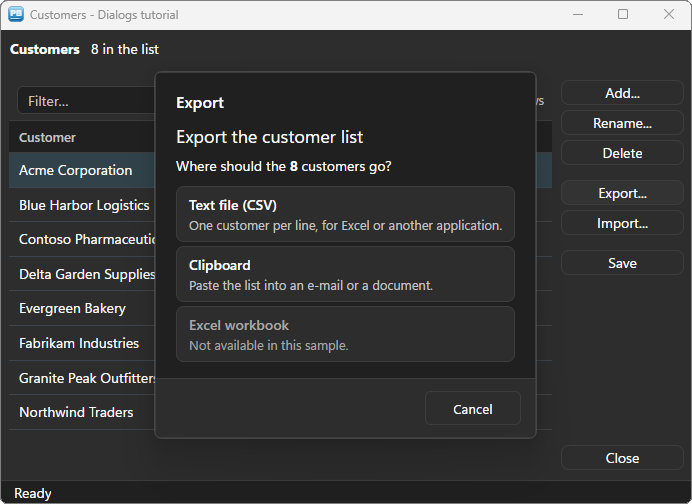
A choice can be disabled — the last argument of of_add_choice — to show an option that exists but does not apply here. of_choose adds a single, translated Cancel button by itself.
Step 8 — Report an error support can use #
An error box should tell the user what happened in one sentence — and keep the technical report within reach, folded, for support. is_details does that: a monospace zone behind a Show details button, copied by Ctrl+C even when folded. A link in the footer opens the browser and leaves the box up.
inv_mb.of_reset()
inv_mb.is_title = "Import"
inv_mb.is_icon = inv_mb.ICON_ERROR
inv_mb.is_instruction = "The import failed"
inv_mb.is_message = "The file [b]customers.csv[/b] could not be read: line 3 holds [b]4[/b] columns, [b]2[/b] were expected."

// What support asks for, folded under the message : Ctrl+C copies it
inv_mb.is_details = "File    : C:\Data\customers.csv~r~n" + &
	"Line 3  : Acme;Paris;FR;2026~r~n" + &
	"Columns : 4 found, 2 expected (name;city)~r~n" + &
	"Reader  : n_customer_import.of_read_line"

// A link in the footer opens the browser and leaves the box up
inv_mb.is_footer = "[hyperlink=https://pbtoolboxai.net]How to prepare an import file[/hyperlink]"

inv_mb.of_add_button(/*text*/ "Retry", /*default*/ true, /*cancel*/ false)
inv_mb.of_add_button(/*text*/ "Cancel", /*default*/ false, /*cancel*/ true)
ll_answer = inv_mb.of_show(/*hwnd*/ Handle(this))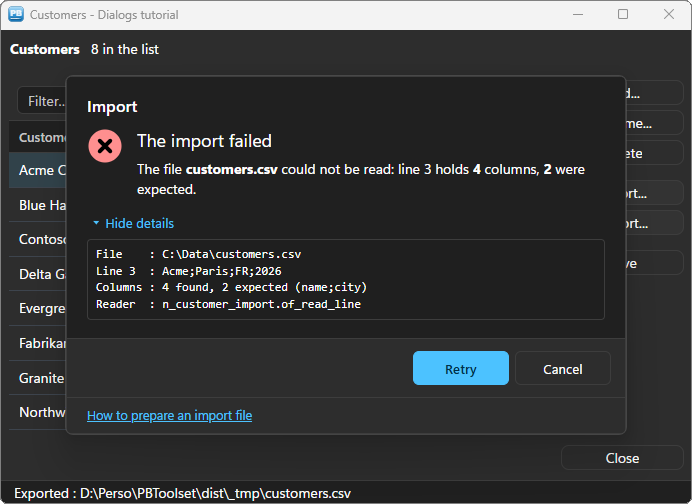
Step 9 — Toasts: inform without blocking #
"Saved.", "Customer added.", "Export complete.": nothing to answer, so nothing should stop the user. That is the job of a toast.
The toaster raises events — a button of a toast was clicked, a toast closed — so the window holds it as a non-visual object of its own, where those events are scripted. In the window painter, insert a non-visual object of class n_pbt_toaster and name it inv_toast. Then anchor it to the window:
// open event of the window

// The toasts are anchored to the corner of THIS window
inv_toast.ipo_owner = this
A small function shows a short notification:
// wf_toast (string as_kind, string as_text)

// A short notification : it informs, then goes away on its own.
// of_reset clears what the previous toast set (title, buttons, key...).
inv_toast.of_reset()
inv_toast.is_kind = as_kind
inv_toast.is_text = as_text
inv_toast.of_show()
// "Saved" needs no answer : a toast instead of a box the user must close
wf_toast(inv_toast.KIND_SUCCESS, "Your changes were [b]saved[/b].")Four kinds — KIND_INFO, KIND_SUCCESS, KIND_WARNING, KIND_ERROR — set the icon and the colour of the stripe. An error or a warning plays the Windows sound, the others stay quiet. A toast goes away on its own after four seconds — except an error, which stays until it is clicked: an error that vanishes is an error lost. The countdown pauses while the pointer rests on the toast. il_timeout sets another duration, in milliseconds; TIMEOUT_UNTIL_CLICKED keeps any toast until the user closes it.
Step 10 — A toast that acts: Undo #
A confirmation box before a deletion is one way to protect the user. An Undo after it is often a better one: the action is quick, and the mistake is still reversible. The sample does both — and once Don't ask me again is ticked, only the undo remains.
// A toast with a button : the Undo comes back through ue_toast_action
inv_toast.of_reset()
inv_toast.is_kind = inv_toast.KIND_INFO
inv_toast.is_key = "delete"
inv_toast.is_text = "[b]" + inv_utils.of_escape_markup(ls_name) + "[/b] was deleted."
inv_toast.il_timeout = 8000
inv_toast.of_add_button(/*key*/ "undo", /*label*/ "Undo")
inv_toast.of_show()
The click comes back in the ue_toast_action event of inv_toast, with the key of the button:
// ue_toast_action event of inv_toast : (long al_id, string as_key, string as_action)

// A button of a toast : as_action is the key given to of_add_button
choose case as_action
	case "undo"
		parent.wf_undo_delete()
	case "open"
		Run("notepad.exe ~"" + parent.is_export_path + "~"")
end choose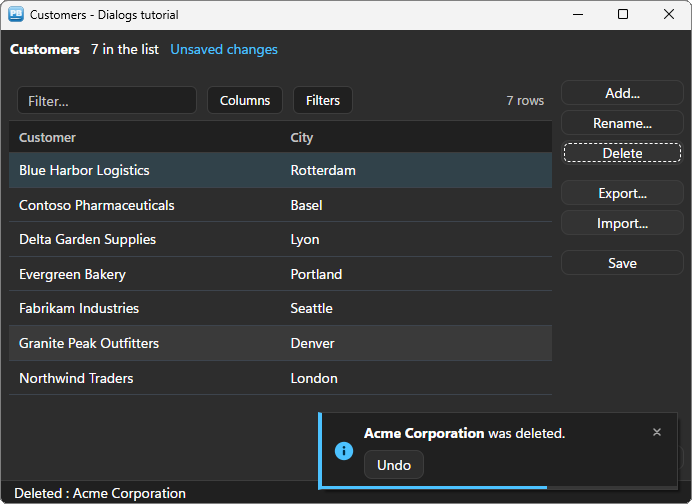
You wire nothing else: the toaster delivers its events by itself while one of its toasts is on screen — no timer, no custom user event.
Step 11 — A toast that follows a long task #
A toast with a key is updated in place: showing the same key again changes the toast already on screen instead of opening a second one. The export uses it to report its progress — here driven by the window timer, in a real application by your processing loop:
// The SAME key : each show updates the toast already on screen, no second one opens
inv_toast.of_reset()
inv_toast.is_key = "export"
inv_toast.is_sound = inv_toast.SOUND_NEVER
if ii_export_step < li_total then
	inv_toast.is_title = "Exporting"
	inv_toast.is_text = "Customer [b]" + String(ii_export_step) + "[/b] of " + String(li_total) + "..."
	inv_toast.il_timeout = inv_toast.TIMEOUT_UNTIL_CLICKED
	inv_toast.of_show()
	return
end if
At the end, the same key turns the progress into a success, with a button that opens the file:
inv_toast.is_kind = inv_toast.KIND_SUCCESS
inv_toast.is_title = "Export complete"
inv_toast.is_text = "[b]" + String(li_total) + "[/b] customers written."
inv_toast.of_add_button(/*key*/ "open", /*label*/ "Open the file")
inv_toast.of_show()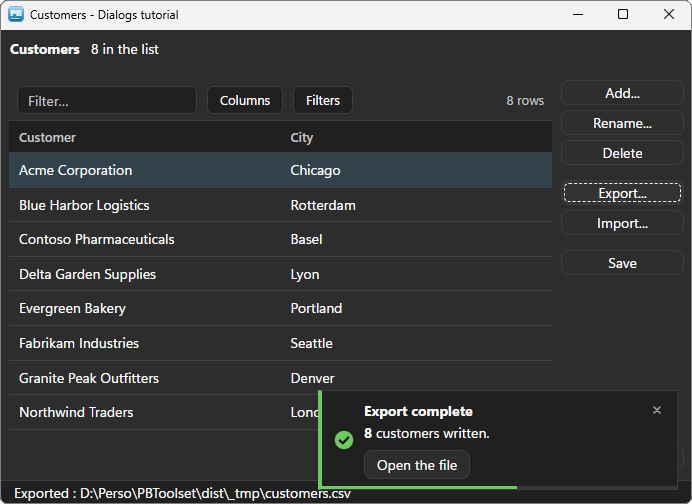
Themes and the rest of the window #
Every dialog and every toast follows the theme set by PBT_SetDefaultTheme — light or dark, Fluent or Office. The window around them is yours: in the sample, the header is a u_pbt_statictext (free too), whose ue_bg_color event reports the background of the theme so that the window follows it. The customer grid and the status bar follow the theme by themselves.
One colour can still differ, per dialog: il_accent gives this box its own accent — the default button and the check box take it. Use it to mark a success in green or an error in red; for a destructive action, remember that the accent goes to the default button.
Deploying #
Next to your executable, ship:
my_app.exe
pbtoolboxai.dll     <- the x86 or the x64 copy, matching your build
The DLL has the same name in 32 and 64 bit: you develop in the 32-bit IDE and compile a 64-bit executable without changing a line of PowerScript — only the copied file changes. No licence key to set for the dialogs: both components are free. The datagrid needs one — PBT_SetLicense in the application open event — or a ListBox in its place.
Going further #
of_add_button_timed: a button that stays disabled a few seconds — read this first — or clicks itself after a delay.[action=id]zones in the message: a link in the text that answers like a button (is_last_action).- Toasts anchored to the screen (
ib_screen = true), at any of six corners and edges, stacked by monitor — for a long task that ends while the window is minimised. ue_toast_clicked: open the relevant screen when the user clicks the body of a toast.
Every method, property and event is in the message box reference and the toaster reference.
And if you write PowerScript with Claude, Cursor or VS Code, connect them to the PBToolboxAI documentation MCP server: your assistant then looks up the exact API instead of guessing, and checks the code it proposes. The code of this tutorial was checked that way.
Download: the PBToolboxAI demonstration package — free: the library, the DLL, and the sample of this tutorial in the Tutorials tab of the demo.