Guides · Tutorial
An Outlook-like calendar in PowerBuilder: booking meeting rooms
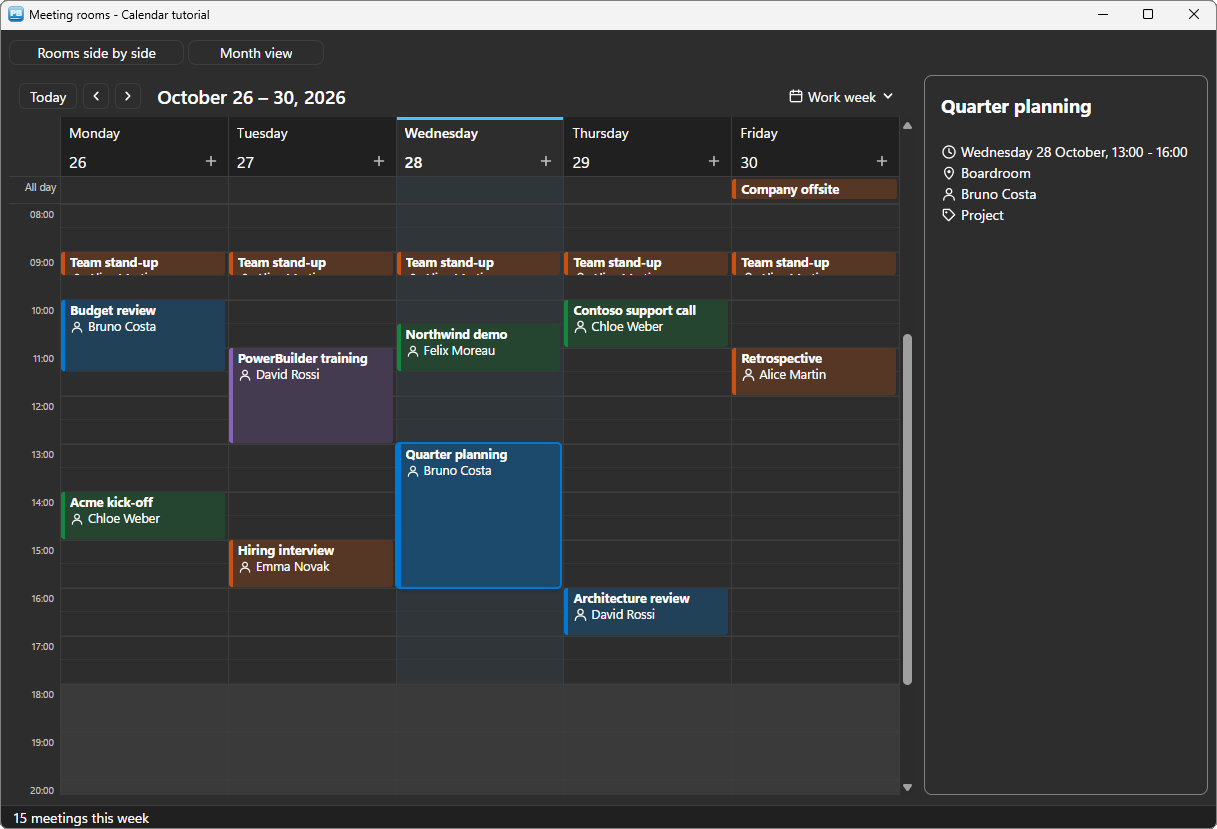
Planning screens are everywhere in business applications: rooms, technicians, vehicles, appointments with customers. PowerBuilder has no calendar control, and building one out of DataWindows is weeks of work for a result users find stiff next to Outlook. This tutorial puts a real Outlook-like calendar in a PowerBuilder window with PBToolboxAI: day, work week, week, month and agenda views, rooms side by side, colour categories, drag and drop to move and resize, a veto when a room is taken, and every change written back into the DataStore.
The calendar is a regular PowerBuilder userobject, u_pbt_scheduler, driven in PowerScript from PowerBuilder 10.2 to 2025. Every line of code below comes from the sample application: the window w_tuto_calendar of the PBToolboxAI demo, opened by its Tutorials tab.
What you need #
- PowerBuilder 10.2 → 2025 (32 or 64 bit).
- Windows 10 or 11: the Microsoft WebView2 runtime the components rely on is already there.
- The PBToolboxAI demonstration package — free, from the downloads page. It holds
pbtoolboxai.pbl,pbtoolboxai.dlland the sample application of this tutorial.
The finished code. Open
pbtoolboxai_demo.pbwfrom the demonstration package and run it: the Tutorials tab of its ribbon opens the sample of this tutorial, the windoww_tuto_calendar, with its DataWindow objectd_tuto_meetings. Their source is inpbtoolboxai_demo.pbl, ready to read or to copy.Demo mode. In your own application, without a licence key, the calendar runs in demo mode: 12 appointments drawn at most, and a small DEMO badge. The sample books 15 meetings this week.
Step 1 — Prepare the target #
- Copy
pbtoolboxai.pblinto your application folder and add it to the library list of your target. - Copy
pbtoolboxai.dll— the x86 copy, since the PowerBuilder IDE is 32-bit — next topbXXX.exeor into the working folder of the target. - Set the licence and the theme in the
openevent of the application object:PBT_SetLicense(...)thenPBT_SetDefaultTheme("fluent-dark").
In the window painter, place a userobject of class u_pbt_scheduler named uo_calendar, and a u_pbt_statictext named uo_detail for the card of the selected meeting.
Step 2 — The meetings are rows of a DataStore #
The calendar does not hold your data: it shows the rows of a DataStore, one row per meeting. d_tuto_meetings has the columns a booking needs:
| Column | Type | Role |
|---|---|---|
subject | char | The title of the meeting |
start_date, end_date | datetime | When |
all_day | long | 1 for an event of whole days |
room | char | Which room |
organizer, category | char | Who, and its colour |
Most columns are recognised by their name: subject, start_date, end_date, all_day, organizer, category. A column with another name says which role it plays — here the room is the resource:
// "room" is not a role name : it plays the resource. subject, start_date, end_date,
// all_day, organizer and category are recognised by their names.
uo_calendar.of_map(/*role*/ u_pbt_scheduler.ROLE_RESOURCE, /*column*/ "room")
The rooms and the categories are declared once; their keys are the values found in the columns:
// The rooms : the values of the "room" column are their keys
uo_calendar.of_add_resource(/*key*/ "rooma", /*label*/ "Room A")
uo_calendar.of_add_resource(/*key*/ "roomb", /*label*/ "Room B")
uo_calendar.of_add_resource(/*key*/ "board", /*label*/ "Boardroom")

// The categories colour the meetings : the values of the "category" column
uo_calendar.of_add_category(/*key*/ "project", /*label*/ "Project", /*color*/ RGB(/*red*/ 0, /*green*/ 120, /*blue*/ 212))
uo_calendar.of_add_category(/*key*/ "customer", /*label*/ "Customer", /*color*/ RGB(/*red*/ 16, /*green*/ 137, /*blue*/ 62))
uo_calendar.of_add_category(/*key*/ "internal", /*label*/ "Internal", /*color*/ RGB(/*red*/ 202, /*green*/ 80, /*blue*/ 16))
uo_calendar.of_add_category(/*key*/ "training", /*label*/ "Training", /*color*/ RGB(/*red*/ 135, /*green*/ 100, /*blue*/ 184))
Then one call loads every row:
// Every row of the DataStore, one meeting each
uo_calendar.of_from_datastore(/*ads*/ ids_meetings)
The key of a meeting is its row number in the DataStore: every event of the calendar hands it back, and ids_meetings.GetItemString(Long(as_key), "subject") reads the row. The dates are read whatever the regional settings of the workstation.
Step 3 — What a meeting shows #
A card and its tooltip are written by templates: rich text with {fields} — the built-in ones ({subject}, {time}, {duration}…) and every column of the DataStore:
// What a card shows, and its tooltip : rich text with {fields}, any column of the
// DataStore included
uo_calendar.is_card_template = "[b]{subject}[/b][br][symbol=person] {organizer}"
uo_calendar.is_tooltip_template = "{time}[br][symbol=person] {organizer}"
[symbol=person] draws a small icon in the colour of the text. The working hours are shaded, and the view opens at the start of the day:
// The working day : 8 to 18, opened at 8
uo_calendar.is_work_start = "08:00"
uo_calendar.is_work_end = "18:00"
uo_calendar.is_scroll_time = "08:00"
The calendar brings its own toolbar — today, previous, next, and the choice of the view — and the line of the current time.
Step 4 — Rooms side by side, and the views #
The view is a property. So is the grouping: with GROUP_RESOURCE, each day gets one column per room, and a meeting dragged from one column to another changes room.
// ue_clicked event of uo_rooms
// One column per room and per day : a meeting dragged to another column changes room
if parent.uo_calendar.is_group_by = u_pbt_scheduler.GROUP_NONE then
	parent.uo_calendar.is_group_by = u_pbt_scheduler.GROUP_RESOURCE
	this.is_text = "All rooms together"
else
	parent.uo_calendar.is_group_by = u_pbt_scheduler.GROUP_NONE
	this.is_text = "Rooms side by side"
end if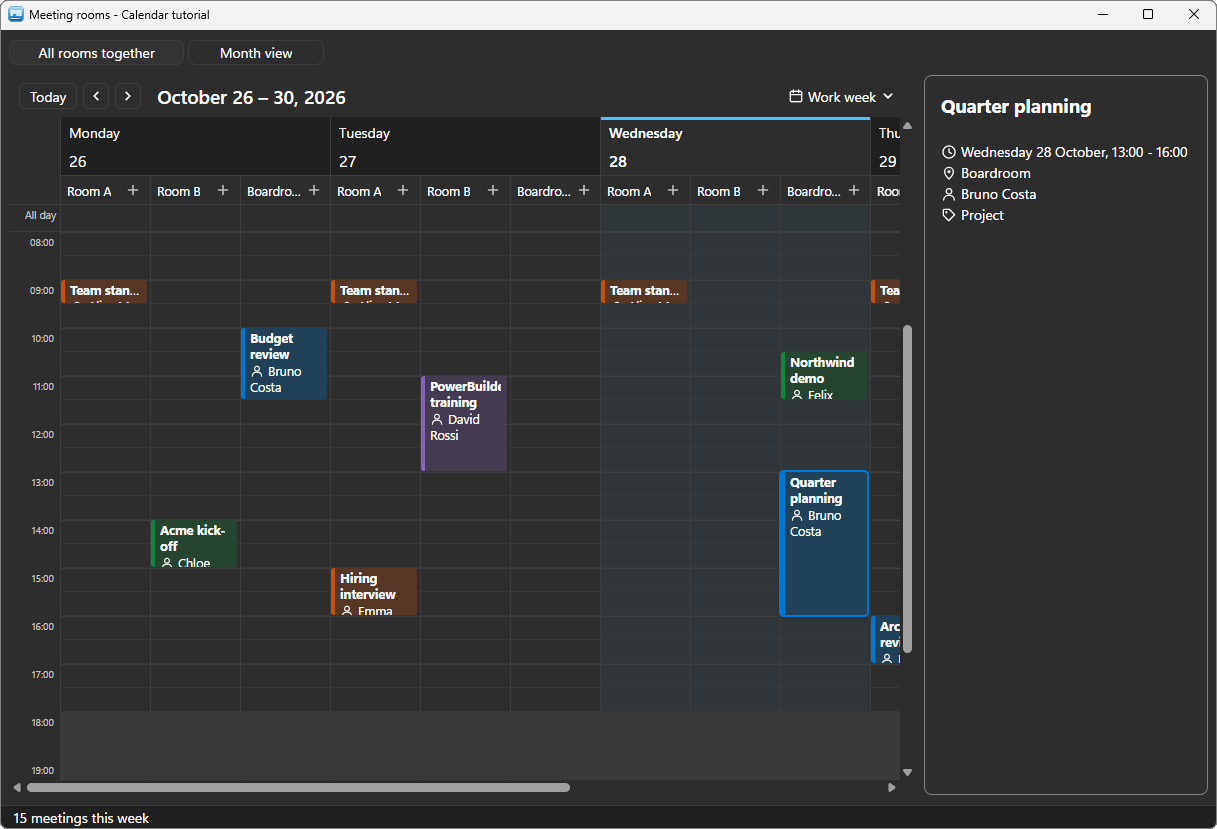
// ue_clicked event of uo_month
// The view is a property : day, work week, week, month, agenda
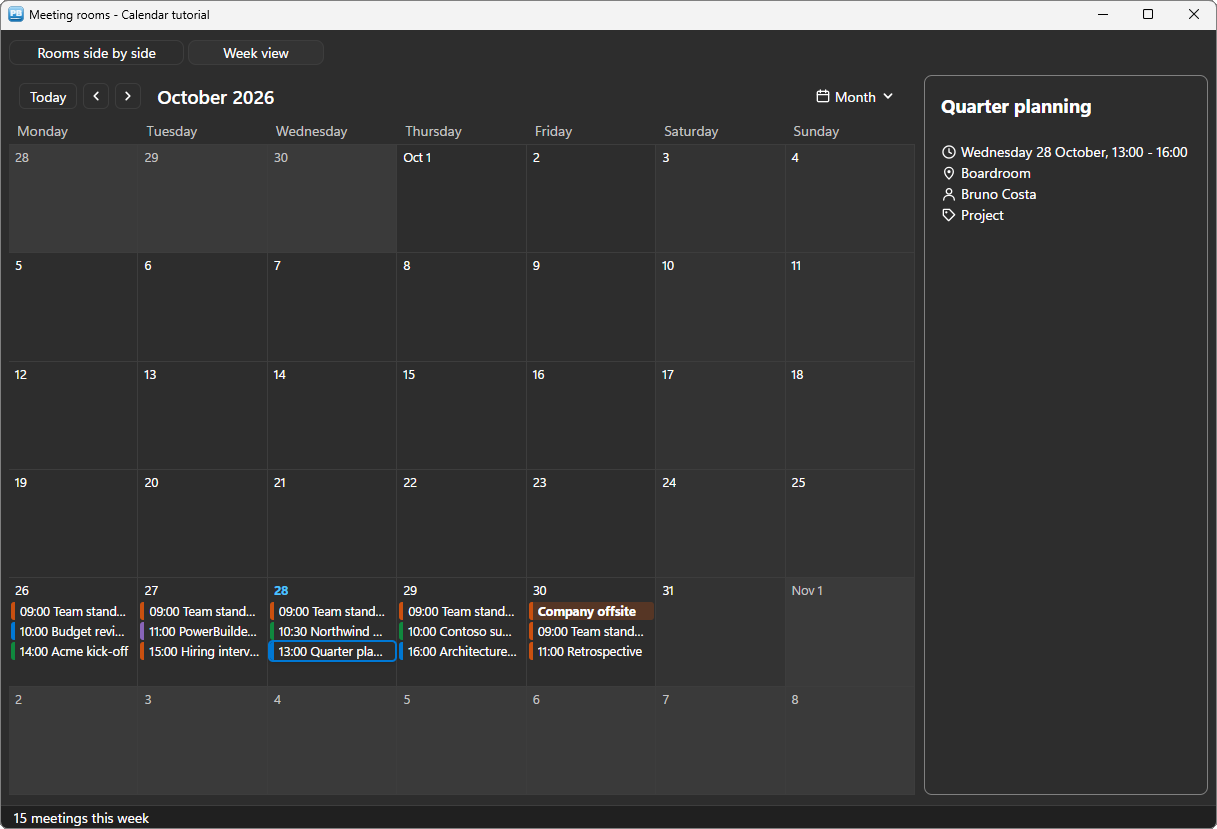
if parent.uo_calendar.is_view = u_pbt_scheduler.VIEW_MONTH then
	parent.uo_calendar.is_view = u_pbt_scheduler.VIEW_WORK_WEEK
	this.is_text = "Month view"
else
	parent.uo_calendar.is_view = u_pbt_scheduler.VIEW_MONTH
	this.is_text = "Week view"
end if
Step 5 — Drag and drop, written back, with a veto #
The user moves a meeting by dragging it, and resizes it by its edge. Two properties make that safe for your data:
// A move or a resize is written into the row (ib_write_back), once
// ue_appointment_changing agreed (ib_veto_changes)
uo_calendar.ib_write_back = true
uo_calendar.ib_veto_changes = true
With ib_veto_changes, the calendar asks first. A room cannot be booked twice: the window looks for another meeting of the same room at that time, and refuses the move — the meeting goes back where it was.
// ue_appointment_changing event of uo_calendar : (string as_key, string as_kind, string as_start, string as_end, string as_resource) returns boolean
// Local variables
string ls_busy

// Asked BEFORE a move or a resize (ib_veto_changes) : a room is never booked twice
ls_busy = parent.wf_conflict(Long(as_key), as_start, as_end, as_resource)
if ls_busy <> "" then
	parent.wf_status("Refused : the room is taken by " + ls_busy)
	return false
end if
return true
// wf_conflict (long al_row, string as_start, string as_end, string as_room) returns string
// Local variables
datetime ldt_start, ldt_end
long ll_row
// Another meeting of the same room that overlaps : its subject, or "" when the room is free.
// Rooms not side by side, a move keeps its room : the calendar then sends none.
if as_room = "" and al_row > 0 then as_room = ids_meetings.GetItemString(al_row, "room")
ldt_start = wf_datetime(as_start)
ldt_end = wf_datetime(as_end)
for ll_row = 1 to ids_meetings.RowCount()
if ll_row = al_row then continue
if ids_meetings.GetItemNumber(ll_row, "all_day") = 1 then continue
if ids_meetings.GetItemString(ll_row, "room") <> as_room then continue
if ldt_start < ids_meetings.GetItemDateTime(ll_row, "end_date") and ldt_end > ids_meetings.GetItemDateTime(ll_row, "start_date") then
return ids_meetings.GetItemString(ll_row, "subject")
end if
next
return ""The calendar speaks "yyyy-mm-dd hh:mm", whatever the regional settings, and one line turns it into a datetime:
// wf_datetime (string as_value) returns datetime
// The calendar speaks "yyyy-mm-dd hh:mm", whatever the regional settings
return DateTime(Date(Left(as_value, 10)), Time(Mid(as_value, 12)))
Once accepted, the move is already in the row when ue_appointment_moved arrives — a SetItem typed by the column. The Update() stays yours:
// ue_appointment_moved event of uo_calendar
// The row already holds the new start, end and room (ib_write_back)
parent.wf_show_meeting(Long(as_key))
parent.wf_status("Moved : " + parent.ids_meetings.GetItemString(Long(as_key), "subject") + " - " + String(parent.ids_meetings.ModifiedCount()) + " row(s) to save")
Step 6 — Booking and cancelling #
The calendar adds and removes nothing by itself: it asks. A double-click on an empty slot — or the + of a day — raises ue_new_requested with the slot and the room:
// ue_new_requested event of uo_calendar : (string as_start, string as_end, boolean ab_all_day, string as_resource)
// A double-click on an empty slot, or the + of a day : book a room
parent.wf_book(as_start, as_end, ab_all_day, as_resource)
// wf_book (extract) : one line asks for the subject, then a new row
ls_subject = inv_mb.of_prompt(/*hwnd*/ Handle(this), /*title*/ "Book a room", /*message*/ "Subject of the meeting:", /*default*/ "", /*password*/ false, /*required*/ true)
if ls_subject = "" then return
// A new row, then the calendar reads the DataStore again (row numbers are the keys)
ll_row = ids_meetings.InsertRow(0)
ids_meetings.SetItem(ll_row, "subject", ls_subject)
ids_meetings.SetItem(ll_row, "start_date", wf_datetime(as_start))
ids_meetings.SetItem(ll_row, "end_date", wf_datetime(as_end))
if ab_all_day then ids_meetings.SetItem(ll_row, "all_day", 1) else ids_meetings.SetItem(ll_row, "all_day", 0)
ids_meetings.SetItem(ll_row, "room", as_room)
ids_meetings.SetItem(ll_row, "organizer", "You")
ids_meetings.SetItem(ll_row, "category", "project")
uo_calendar.of_from_datastore(/*ads*/ ids_meetings)
uo_calendar.of_select_appointment(/*key*/ String(ll_row))The Delete key on a meeting raises ue_delete_requested; the window asks, then removes the row:
// ue_delete_requested event of uo_calendar : (string as_key)
// The Delete key on a meeting : the calendar removes nothing by itself
parent.wf_cancel(Long(as_key))
inv_mb is the themed message box of the dialogs tutorial.
Step 7 — The card of the selected meeting #
The selection comes with ue_selection_changed, and the card on the right is rich text:
// ue_selection_changed event of uo_calendar : (string as_key)
// The key of a meeting is its row in the DataStore ("" : nothing selected)
if as_key = "" then parent.wf_show_meeting(0) else parent.wf_show_meeting(Long(as_key))
// wf_show_meeting (long al_row) (extract)
uo_detail.is_text = "[size=14][b]" + inv_utils.of_escape_markup(ids_meetings.GetItemString(al_row, "subject")) + "[/b][/size][br][br]" &
+ "[symbol=clock] " + ls_when + "[br]" &
+ "[symbol=location] " + uo_calendar.of_resource(/*key*/ ids_meetings.GetItemString(al_row, "room")).is_label + "[br]" &
+ "[symbol=person] " + inv_utils.of_escape_markup(ids_meetings.GetItemString(al_row, "organizer")) + "[br]" &
+ "[symbol=tag] " + uo_calendar.of_category(/*key*/ ids_meetings.GetItemString(al_row, "category")).is_labelA subject typed by a user is data: of_escape_markup keeps a bracket in it from being read as markup.
Deploying #
Next to your executable, ship:
my_app.exe
pbtoolboxai.dll     <- the x86 or the x64 copy, matching your build
The DLL has the same name in 32 and 64 bit: you develop in the 32-bit IDE and compile a 64-bit executable without changing a line of PowerScript. Call PBT_SetLicense with your key in the application open event, and the 12-appointment limit and the demo badge go away.
Going further #
- Load what is visible:
ue_date_changed(first, last)says which days are on screen — retrieve only those rows. - Status of a meeting: the
statuscolumn (busy, tentative, free, out of office) draws the band on the left of a card, as in Outlook;recurring,is_private,reminderadd their icons. - Read-only meetings: a
read_onlycolumn, orib_read_onlyfor the whole calendar. - The right-click:
ue_appointment_rclickedandue_slot_rclickedsay which meeting or which slot was clicked, and where on the screen — the place for a menu of your own.
Every method, property and event is in the scheduler reference.
And if you write PowerScript with Claude, Cursor or VS Code, connect them to the PBToolboxAI documentation MCP server: your assistant then looks up the exact API instead of guessing, and checks the code it proposes. The code of this tutorial was checked that way.
Download: the PBToolboxAI demonstration package — free: the library, the DLL, and the sample of this tutorial in the Tutorials tab of the demo.